Introduction
A slow online store doesn't just annoy customers — it literally costs you money. Studies show that for every extra second your page takes to load, you lose about 7% of conversions. That's real revenue walking out the door.
Google also uses site speed as a ranking factor, so a slow store means less organic traffic too. The good news is that most speed problems have straightforward fixes. In this post, we'll go through everything you need to know about Core Web Vitals — what they are, how to measure them, and exactly how to fix each one.
What Are Core Web Vitals
Core Web Vitals (CWVs) are three specific measurements Google uses to judge how fast and stable your website feels to visitors. They're part of Google's "page experience" ranking signals, meaning they directly affect where your site shows up in search results.
The three metrics are:
- LCP (Largest Contentful Paint): How fast does the main content appear? Good: under 2.5 seconds. Needs work: 2.5-4 seconds. Poor: over 4 seconds.
- CLS (Cumulative Layout Shift): Does the page jump around while loading? Good: under 0.1. Needs work: 0.1-0.25. Poor: over 0.25.
- INP (Interaction to Next Paint): How fast does the page respond when you click something? Good: under 200ms. Needs work: 200-500ms. Poor: over 500ms.
These might sound technical, but they're measuring things you experience every day as a web user. That frustrating wait for a page to appear? That's bad LCP. The annoying jump when you're about to click a button? That's CLS. The lag after clicking "Add to Cart"? That's INP.
How to Measure Your Scores
Before fixing anything, you need to know where you stand. Here are the tools you can use:
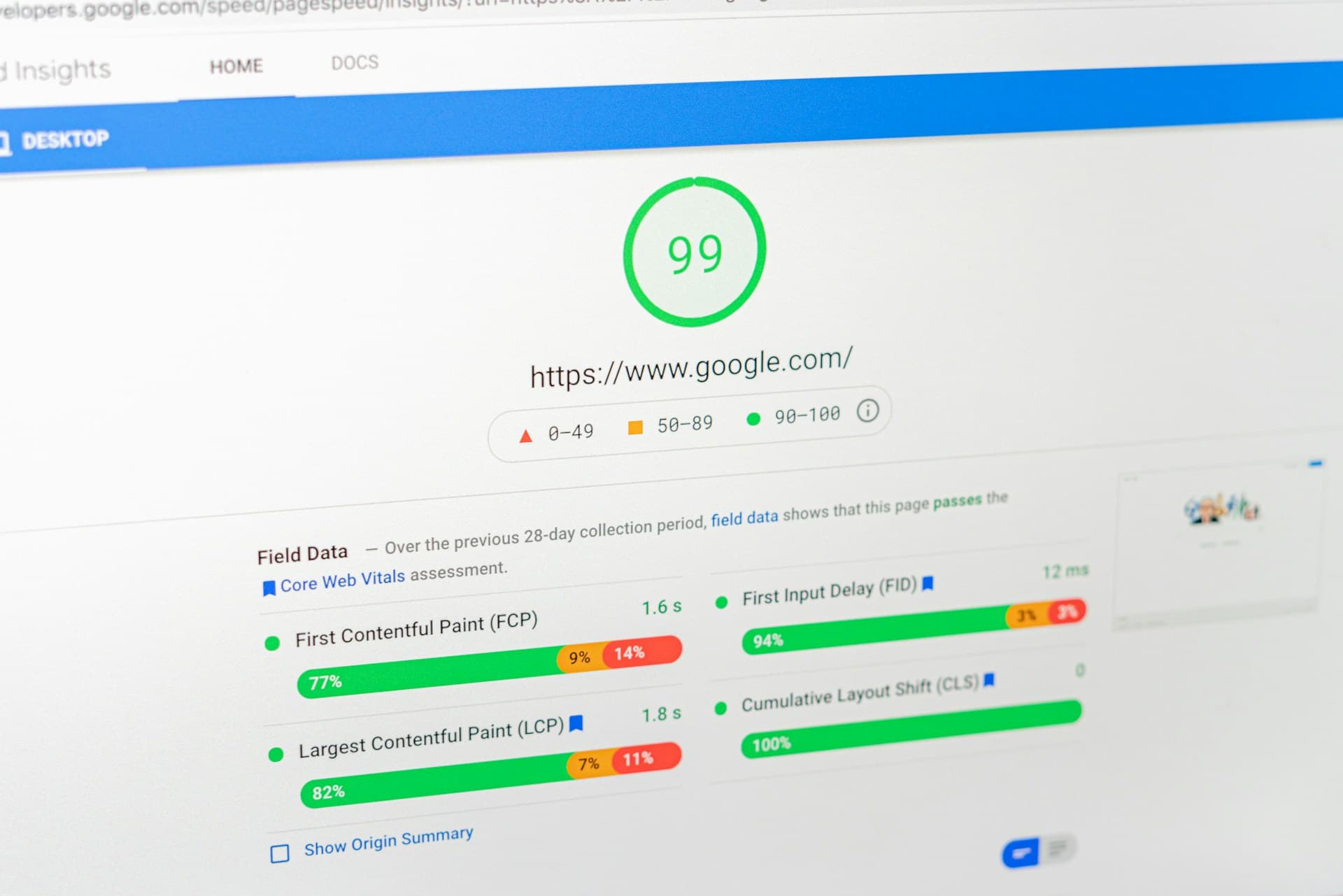
PageSpeed Insights (free): Go to pagespeed.web.dev and paste your URL. This shows both "field data" (real user measurements) and "lab data" (simulated measurements). Field data is more important because it shows what actual visitors experience.
Chrome DevTools: Open your store in Chrome, press F12, go to the "Performance" tab, and record a page load. This gives you detailed breakdowns of what's happening during load. It's more technical but very useful for identifying specific bottlenecks.
Chrome User Experience Report (CrUX): This is the dataset Google actually uses for ranking. You can access it through PageSpeed Insights (it's the "field data" section) or through the CrUX Dashboard in Google's Data Studio. If your site gets enough traffic, this shows your real CWV scores.
Web Vitals Extension: Install the "Web Vitals" Chrome extension. It shows your CWV scores in real time as you browse your own site. It's great for quickly checking individual pages.
Run your homepage, your best-selling product page, and your collection pages through PageSpeed Insights. Write down the scores. That's your baseline.
LCP - Largest Contentful Paint
LCP measures how fast the biggest piece of content on your page shows up. On a homepage, that's usually the hero image or banner. On a product page, it's the main product image.
Why it matters: If your main content takes 4-5 seconds to appear, visitors are staring at a mostly blank screen. Many of them will hit the back button before they even see your products.
Common causes of bad LCP:
- Huge uncompressed images: This is the #1 issue we see. A single uncompressed hero image can be 2-5 MB. It should be 100-300 KB.
- Too many apps loading scripts before content: Every Shopify app that adds JavaScript to your page delays content rendering. If you have 15 apps, all their scripts are fighting for bandwidth.
- Slow server response time: On Shopify this is less of an issue (they handle hosting), but on self-hosted platforms it can be a major bottleneck.
- Web fonts that block rendering: If the browser waits for fonts to download before showing text, everything is delayed.
- Render-blocking CSS: If your CSS file is huge, the browser has to download and parse all of it before showing any content.
How to fix it:
- Compress all images and use WebP or AVIF format (60-80% smaller than JPEG/PNG)
- Preload your hero image so the browser grabs it first:
<link rel="preload" as="image" href="hero.webp"> - Remove apps you're not using — seriously, audit them today
- Use
font-display: swapso text appears immediately with a fallback font while the web font loads - Inline critical CSS (the CSS needed for above-the-fold content) and defer the rest
CLS - Cumulative Layout Shift
CLS measures how much stuff jumps around while the page is loading. You know that annoying thing where you're about to click a button and the page shifts and you click something else? That's layout shift.
Why it matters: Layout shift is jarring and frustrating. It makes your site feel broken. On mobile, it's even worse because screens are smaller and shifts are more noticeable.
Common causes:
- Images without width and height attributes: When the browser doesn't know an image's dimensions, it shows the page without the image, then shifts everything when the image loads.
- Ads or banners that load late: A popup bar or promotional banner that appears after the page loads and pushes everything down.
- Fonts that swap and change text size: When a web font loads and replaces the fallback font, the text can change size, shifting the layout.
- Dynamic content injected above existing content: Review widgets, notification bars, or chat widgets that push content down after loading.
- Embeds and iframes without dimensions: YouTube videos, Instagram embeds, or maps that don't have set dimensions.
How to fix it:
- Always set
widthandheightattributes on images and videos. Or use CSSaspect-ratio. - Reserve space for ads, banners, and embeds using CSS min-height
- Use
font-display: swapwith fallback fonts that closely match your web font's metrics - Don't inject content above existing content after page load. If you need a notification bar, load it in the initial HTML or reserve space for it.
- Test your site with a slow connection (Chrome DevTools → Network → Slow 3G) to see shifts happening in slow motion
INP - Interaction to Next Paint
INP measures how fast your page responds when someone clicks a button, taps a link, or types in a field. INP replaced FID (First Input Delay) in March 2024 and it's a much tougher standard because it measures all interactions, not just the first one.
Why it matters: If someone clicks "Add to Cart" and nothing happens for half a second, they might click again (causing duplicate items) or think the site is broken. Responsiveness is what makes a site feel fast, even if the actual load time is average.
Common causes of bad INP:
- Heavy JavaScript blocking the main thread: Complex animations, large frameworks, or poorly written code that takes too long to execute.
- Too many third-party scripts: Analytics tools, chat widgets, tracking pixels, heatmap tools — each one adds JavaScript that competes for processing time.
- Large DOM: Pages with thousands of HTML elements take longer to update. Every time the browser needs to repaint, it has to process more elements.
- Long tasks: Any JavaScript task that runs for more than 50ms blocks the browser from responding to user input. If a click triggers a 200ms task, the page feels frozen during that time.
How to fix it:
- Audit third-party scripts: open Chrome DevTools → Performance, record a session, and look at the "Main" thread for long yellow bars (JavaScript execution). Identify which scripts are taking the most time.
- Defer non-critical JavaScript: use
deferorasyncattributes on script tags, or load scripts after the page is interactive. - Break up long tasks: if you have JavaScript that runs for 200ms, break it into smaller chunks using
requestIdleCallbackorsetTimeout. - Simplify your DOM: reduce the number of HTML elements. Remove hidden elements that are only shown conditionally — load them when needed instead.
- Use
content-visibility: autoon below-the-fold sections to skip rendering until they're near the viewport.
Image Optimization in Detail
Images are usually the biggest opportunity for improvement. Here's a detailed approach:
Format selection:
- WebP: 25-35% smaller than JPEG at the same quality. Supported by all modern browsers. This should be your default format.
- AVIF: 30-50% smaller than JPEG. Even better than WebP but slightly less browser support. Use it where supported, with WebP as fallback.
- JPEG: Still fine for simple photos. Use it as the final fallback.
- PNG: Only for images that need transparency. Never for photos.
- SVG: For logos, icons, and illustrations. Infinitely scalable and tiny file size.
Responsive images with srcset:
Don't serve a 2000px wide image to a phone with a 400px wide screen. Use the srcset attribute to provide multiple image sizes, and the browser picks the right one:
<img
  src="product-800.webp"
  srcset="product-400.webp 400w,
          product-800.webp 800w,
          product-1200.webp 1200w"
  sizes="(max-width: 600px) 400px,
         (max-width: 1200px) 800px,
         1200px"
  alt="Product name"
  width="800"
  height="600"
  loading="lazy"
>
Lazy loading: Add loading="lazy" to every image below the fold. This tells the browser to only load these images when the user scrolls near them. Do NOT lazy-load your hero image or first product image — those should load immediately.
A well-optimized product page should have images totaling 200-400 KB. If your product page images total more than 1 MB, there's room to improve.
Font Loading Strategy
Web fonts cause two problems: they add download time, and they can cause layout shift when they swap in. Here's how to handle them:
- Limit font weights: Don't load every weight of a font family. Most stores only need Regular (400) and Bold (700). Maybe Medium (500) if your design uses it. Every additional weight is another file to download.
- Use font-display: swap: This tells the browser to show text immediately using a system font, then swap to the web font when it's ready. Users see content faster, even if there's a brief flash of different-looking text.
- Preload critical fonts: Add
<link rel="preload" as="font" href="your-font.woff2" crossorigin>in your head tag for fonts used above the fold. - Use WOFF2 format: It's the most compressed web font format. Don't serve TTF or OTF files on the web.
- Consider system fonts: System font stacks (
-apple-system, BlinkMacSystemFont, "Segoe UI", Roboto) load instantly because they're already on the user's device. Not every store needs a custom font.
Third-Party Script Audit
Third-party scripts are often the silent killer of site speed. Here's how to audit them:
Step 1: List everything. Open Chrome DevTools → Network tab → reload the page → filter by JS. Write down every script domain that isn't your own site. Common culprits: Google Analytics, Facebook Pixel, Hotjar, various app scripts, chat widgets.
Step 2: Assess each one. For each script, ask: "Is this actively being used and providing value?" If you installed a heatmap tool 6 months ago and never looked at the data, remove it. If you have a chat widget but nobody monitors it, remove it.
Step 3: Measure impact. Temporarily disable each script (one at a time) and measure the speed difference. Some scripts have minimal impact. Others add 1-2 seconds to every page load. Now you know where to focus.
Step 4: Optimize what stays. For scripts you're keeping, see if they offer async or deferred loading options. Load analytics after the page is interactive, not during the initial render. Some tools let you choose between "load immediately" and "load after page ready" — always pick the latter.
Shopify-Specific Optimizations
If you're on Shopify, here are platform-specific tips:
- Use Shopify's built-in image CDN: Shopify automatically serves images through their CDN and supports format conversion. Add
.webpto image URLs to get WebP versions, or use Liquid filters like| image_url: width: 800. - Remove unused apps completely: Uninstalling a Shopify app doesn't always remove its code from your theme. Go to Online Store → Themes → Edit Code and search for leftover app snippets. For more on this, check our guide to managing Shopify apps.
- Use native features over apps: Shopify now has built-in features for things that previously required apps — basic email marketing (Shopify Email), discount codes, blog, basic analytics. Check if you can replace any apps with native features.
- Theme-specific issues: Some themes are just slow. Run PageSpeed Insights on a fresh demo of your theme to see its baseline score. If the demo scores poorly, the theme is the problem, not your customizations. Consider switching to a faster theme or going custom (see our post on why custom themes matter).
- Liquid render time: Complex Liquid templates with lots of loops and nested conditions can slow down server-side rendering. Keep templates simple and avoid unnecessary product data fetching.
How CWVs Affect Google Rankings
Google officially uses Core Web Vitals as a ranking signal. Here's what that means in practice:
CWVs are a tiebreaker signal, not a dominant one. Content relevance, backlinks, and domain authority are still more important for rankings. But when two pages are roughly equal in content quality, the faster one tends to rank higher.
More importantly, page speed affects user behavior, which affects rankings indirectly. A slow site has higher bounce rates, lower time on site, and fewer pages per session. Google tracks these engagement signals too.
For eCommerce, the bigger impact of speed is on conversions, not just rankings. A store that loads in 1.5 seconds converts significantly better than one that loads in 4 seconds, regardless of search rankings. Fix your speed for your customers, and the SEO benefits will follow.
Before and After Examples
Here are results from recent optimization projects:
Fashion store (Shopify, 15 apps):
- Before: LCP 5.1s, CLS 0.28, INP 380ms, PageSpeed 22/100
- After: LCP 1.8s, CLS 0.04, INP 120ms, PageSpeed 87/100
- Changes: Removed 7 unused apps, compressed images, preloaded hero, deferred non-critical JS
- Result: 18% increase in conversion rate over 2 months
Home goods store (Shopify, 22 apps):
- Before: LCP 6.8s, CLS 0.35, INP 520ms, PageSpeed 14/100
- After: LCP 2.1s, CLS 0.06, INP 160ms, PageSpeed 78/100
- Changes: Switched to custom theme, removed 14 apps, implemented lazy loading, optimized fonts
- Result: 31% increase in conversion rate, 22% increase in pages per session
These aren't theoretical. These are real stores with real revenue that improved measurably after optimization. If you want similar results for your store, check out our services or reach out directly.
Conclusion
Speed isn't just a nice-to-have — it directly affects your revenue and search rankings. Start with the quick wins: compress images, remove unused apps, and enable lazy loading. Then work through the bigger issues over time. Measure your scores before and after every change so you know what's actually making a difference.
Even small improvements add up. Going from a 4-second load time to a 3-second load time might increase conversions by 5-7%. That's real money — and it keeps adding up every month.
A note from the author
Javaid Naik
Lead Developer
Full-stack developer and founder of Apzee Solutions. 8+ years building eCommerce stores and web apps.